
D&D
How to Set Up Roll20 VTT As A Dungeon Master
JUNE 17, 2026

Online Dungeons & Dragons games open up so many possibilities. Thanks to virtual tabletops (VTT) like Roll20, players can participate from anywhere and enjoy immersive maps, ambient music, automated dice rolls, lighting that reveals the dungeon as players explore it, and more.
This guide walks through everything a DM needs to configure before the first session. Whether you're brand new to tabletop RPGs or an experienced DM moving your game online for the first time, the goal is the same: show up to session one with a campaign space that's ready to run.
Creating Your Game
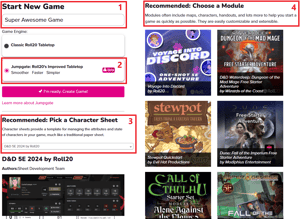
From the Roll20 homepage, click the "Games" button and select "Create New Game" to reach the game creation screen. Give your game a name, select which D&D 5e character sheet version* your players will use, and click "I'm Ready, Create Game." You'll land on the Game Details page, where you can invite players via email or share an invite link.
If you're running a published adventure from the Roll20 Marketplace, you can select it as a Module during game creation. Marketplace modules come with pre-built NPCs and monsters that roll initiative, attacks, and damage directly from the sheet, cutting down significantly on rules overhead for new DMs. For DMs building from scratch, skip the module selection and set things up manually.
New DMs: Start with the free adventure-building guide before diving into manual setup. Roll20's Make and Run Your First Free Adventure series walks through every step from scratch.
*Roll20’s VTT allows groups to use both 2014 sheets and 2024 character sheets within their 5e games. While you’ll have to select one version at setup, you can integrate both into your game.
Setting Up Your Campaign Space
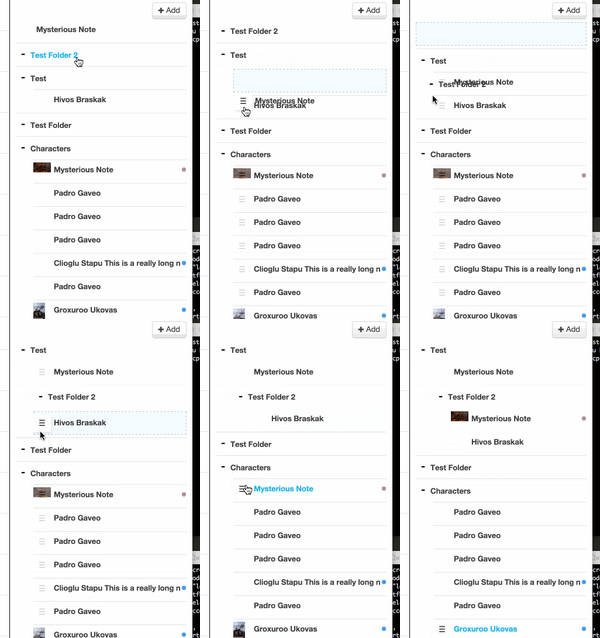
Once your game is created, the Journal is your home base. This is where character sheets, handouts, and GM notes live. Before your players join, spend some time organizing it -- group NPCs together, create handouts for key locations or factions, and use the tagging system to keep things findable mid-session.
The Game Settings page helps you customize your campaign, including sharing your purchased compendium content with players. If you own compendium content, enabling Compendium Sharing lets players browse class descriptions, spells, and backgrounds while building their characters -- especially useful during Session Zero.
Experienced DMs new to Roll20: The Journal works differently than physical notes or other VTTs. Take ten minutes to explore it before your first session -- the tagging and folder system is more powerful than it looks at first. Don’t sleep on it; It may not show its full strength until you’re fully into the adventure.
Maps and the Virtual Tabletop
.png?width=200&height=203&name=mceclip0%20(1).png) Maps are the visual heart of each session. Roll20 organizes the tabletop into five layers: Map (backgrounds), Token (characters and monsters), GM (things only you see), Foreground (stackable layers and effects), and Light (for Dynamic Lighting). Tokens are the images used to represent player characters, NPCs, and monsters on the map -- they can be linked to character sheets so that clicking them gives you instant access to stats and rolls.
Maps are the visual heart of each session. Roll20 organizes the tabletop into five layers: Map (backgrounds), Token (characters and monsters), GM (things only you see), Foreground (stackable layers and effects), and Light (for Dynamic Lighting). Tokens are the images used to represent player characters, NPCs, and monsters on the map -- they can be linked to character sheets so that clicking them gives you instant access to stats and rolls.
You can upload your own maps or pull from content you've purchased on the Marketplace. If you're running a published module, maps are typically pre-loaded with tokens already placed.
Dynamic Lighting is one of Roll20's most immersive features -- it restricts what players can see on the map to only what their character's vision would allow, revealing the dungeon as they explore it. Setting it up involves drawing walls on the Dynamic Lighting layer and configuring token vision settings. It takes some initial setup time, but can quickly become second nature.
Note: Dynamic Lighting is a feature exclusive to Plus and Pro subscribers. Free accounts can still run fully functional games. Dynamic Lighting is an enhancement, not a requirement.
Tokens and Character Sheets
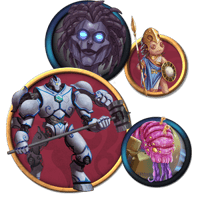
Linking tokens to character sheets is one of the most time-saving things you can do before session one. Once linked, token bars can track hit points and AC in
real time -- no manual updating during combat. Set this up for every player character and you'll spend significantly less time on bookkeeping mid-session.
For NPC and monster tokens from published modules, stat blocks and one-click rolls are already configured. If you're building monsters manually, set up their tokens the same way: link to the character sheet, configure the bars, and place them on the GM layer to wait.
For a first session, pre-generated characters are a good option -- they give players a quick jumping-off point without requiring a full character creation session before anyone has rolled a die. You can always move to custom characters later.
New DMs: Walk your players through their character sheets before session one. A quick orientation -- where hit points live, how to make a roll, how spell slots are tracked -- means nobody arrives confused. Roll20's D&D 5E Character Sheet guide is worth sharing with your group ahead of time.
Audio and Video
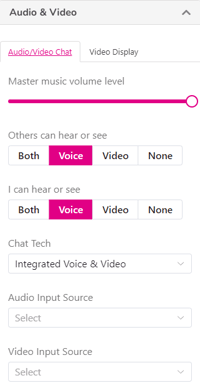 Roll20’s VTT has built-in voice and video features. Be sure to test it before your first session, not during. Go to My Settings in the sidebar, enable voice and video, and have your players do the same before game day.
For atmosphere, the Jukebox is Roll20's built-in audio tool. It gives you access to music and sound effects from Tabletop Audio, BattleBards, and Incompetech, and lets you upload your own files. Queue up a combat track, an ambient tavern loop, and an ominous dungeon atmosphere before the session starts. Switching between them mid-session takes seconds and does more for immersion than almost anything else.
Experienced DMs: If your group uses Discord for voice instead of Roll20's built-in tools, that's a common and workable setup. The Jukebox still handles audio even when voice runs through a third-party app.
Setting Up Combat
The Turn Tracker is Roll20's initiative management tool. To add a creature to the turn order, right-click its token and choose "Add Turn." On the D&D 5E sheet, players can roll initiative directly from their character sheet with their token selected and it populates the tracker automatically -- no manual entry required.
The GM controls the Turn Tracker, which displays on players' screens when opened and disappears when closed. Keep it open during combat and close it when the encounter ends -- it's a small thing that reinforces the shift in pacing between combat and exploration.

Experienced DMs: If you're used to tracking initiative on paper, Roll20's Turn Tracker takes one session to feel natural. The automatic initiative rolling from character sheets wins over skeptics fastest.
Safety Tools.gif?width=300&height=217&name=5d66ea5f-2193-43b4-9ac9-4ce20e57d9bf%20(1).gif)
Roll20 includes a Safety Deck in every new game -- three anonymous cards that let any player signal the table to keep going, slow down, or stop a scene without having to explain themselves. It's already there when you create a game; you don't need to add anything.
For tables that want more, the free RPG Safety Tools add-on from Evil Hat Productions adds the X-Card, Script Change, and a Lines and Veils page directly to your campaign.
New DMs: If you're running a Session Zero before the campaign starts -- and you should be -- this is the right time to introduce your players to the safety tools and explain how to use them. Our Session Zero guide covers this in more detail.
After The Session
Roll20's Journal is also your post-session tool. Create a handout to log what happened, decisions made, and open threads. Share it with your players so everyone starts the next session on the same page.
Update token HP and character sheets between sessions if anything changed at the end of the last one. It takes five minutes and saves confusion at the start of the next game.
Experienced DMs: Forums are an underused tool for between-session communication. It keeps campaign discussion in the same place as the game itself, which is cleaner than managing a separate Discord thread for a long-running campaign.

Ready To Run Your Game?
The Roll20 Crash Course covers the full platform orientation if you want a deeper walkthrough of any feature mentioned here. If you want an even more detailed resource, we have a step-by-step guide to creating D&D adventures in Roll20. If you're still working on which adventure to run first, our guide to the best D&D adventures for new DMs is a good next stop. And when you're ready to find players, Roll20's Looking for Group tool is the fastest way to fill your table.