
D&D ON ROLL20
How to Use Map Pins to Speed Up Your Roll20 VTT Sessions
MAR 26, 2026

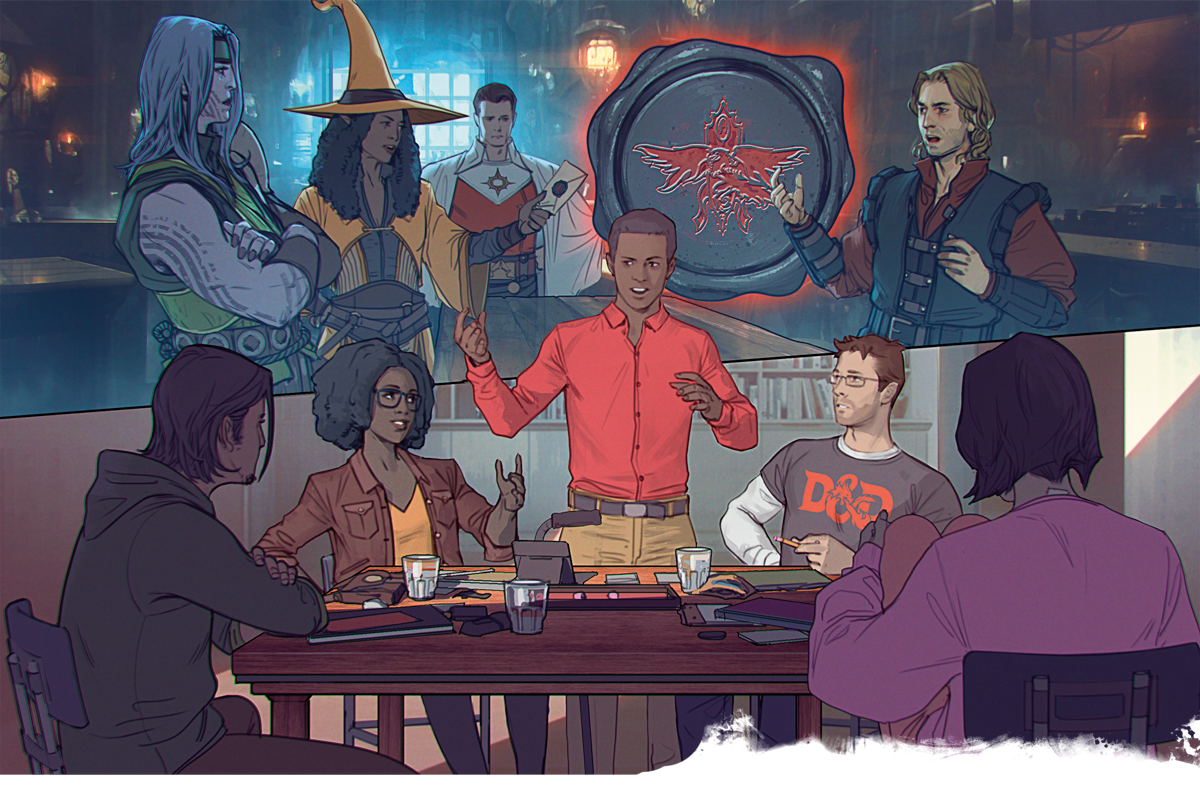
As a Dungeon Master steering a virtual tabletop (VTT) campaign, every tool at your disposal is crucial for crafting immersive and engaging experiences. DM's are constantly in search of tools and features that will streamline their prep and improve their player experience, and the latest of those features, Map Pins, is already earning its reputation as a game-changer. Beyond just decorative markers, Map Pins offer dynamic annotations that can serve as powerful conduits of information for your players. Gone are the days of typing out important lore dumps in chat or meticulously passing around handouts one by one. Map Pins equip your VTT with the promise of so much more than just a 2d tabletop, but a world that actively immerses the players in its story.
What Are Roll20 Map Pins?
Map Pins are interactive markers that can be dropped onto any layer within your Roll20 game. Clickable elements that can display text, images, GM Notes, and even link directly to handouts, so your players can engage with the adventure on an entirely new level. Offering full control with tons of possible settings, Map Pins are quickly becoming the DM's favored way to dispense information, accessible either to the entire party or kept secret for select players only.
Creating Map Pins
There are two ways to create Map Pins. From scratch or from an existing handout.
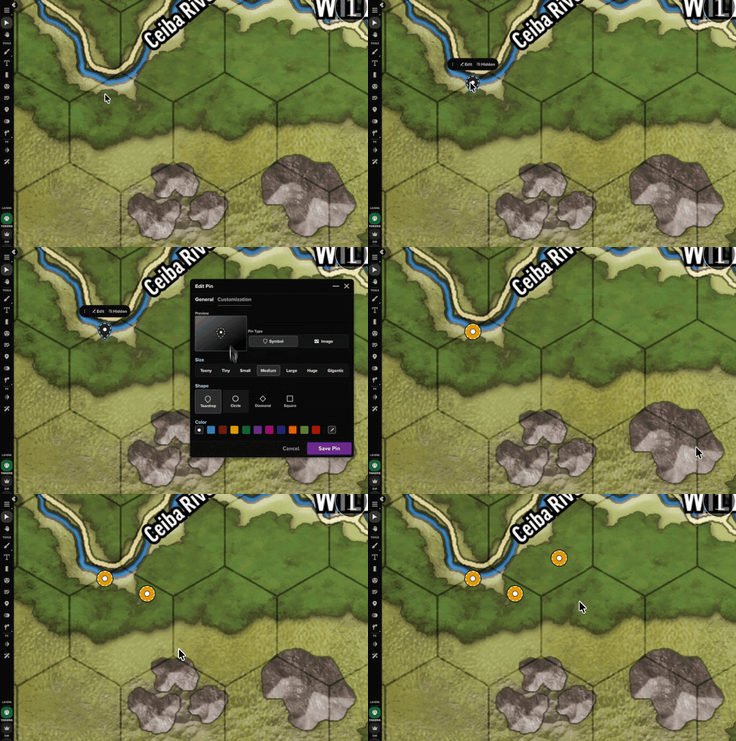
To create a Map Pin from scratch, find the Pin Tool in the left-hand toolbar, then simply right-click on the map to place a Pin.
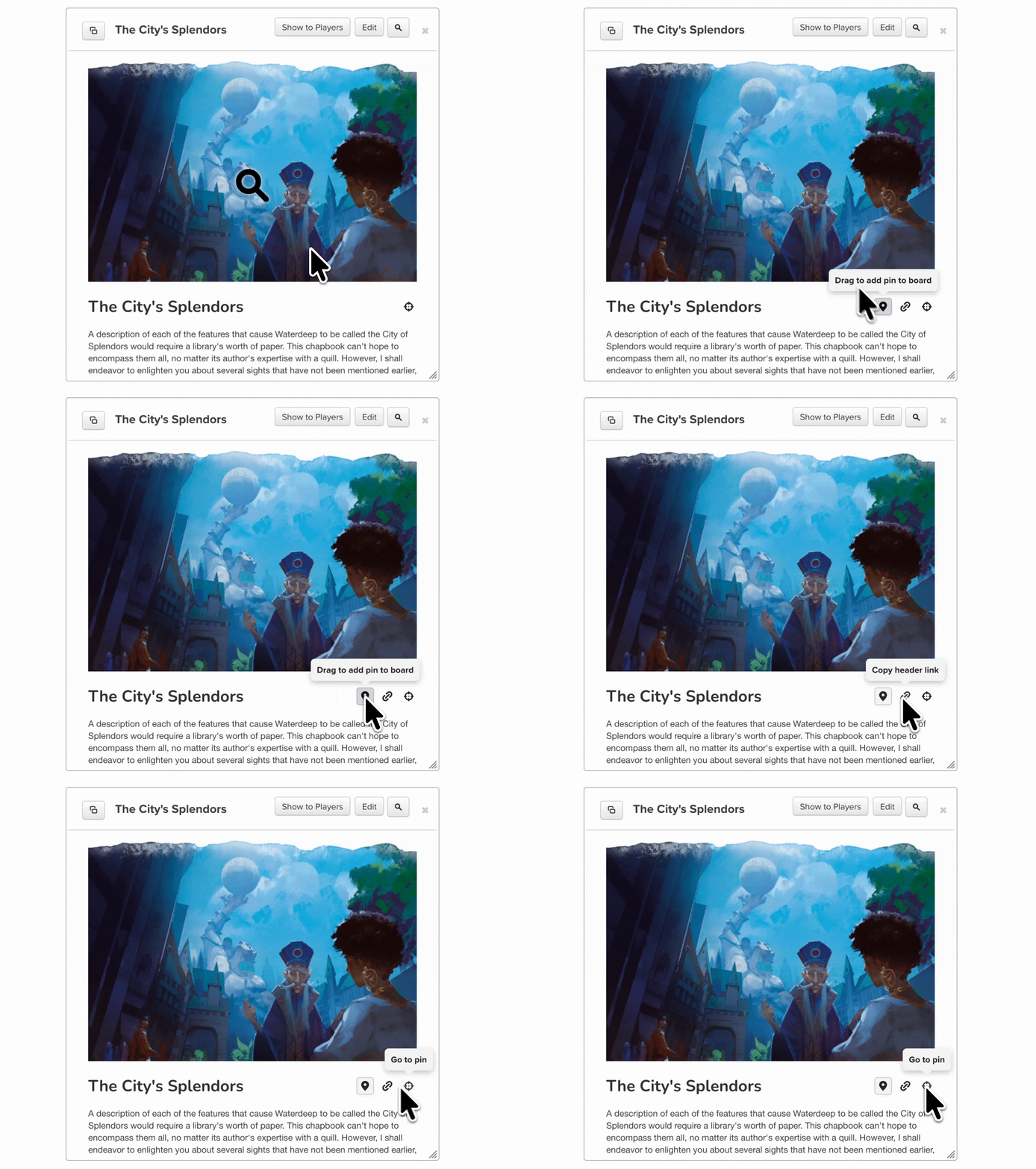
To create a Map Pin from a handout, it's as simple as dragging the handout directly from your journal onto the map. To get even more specific, you can drag individual headers from a handout onto the map to reveal select information.
Customizing Map Pins
Once you've placed a pin, the next step is to customize your Map Pins to meet your preferences. If you've dragged and dropped a pin from a handout, the pin will automatically populate with the art and text in the original handout. If you're creating a pin from scratch, you'll need to hit the "Edit Pin" button. From there, you can enter the title, body text, and upload images.
But the customization options don't stop there.
Shapes, Symbols, and Colors
One of the main advantages of the Map Pin is its ability to present information in a way players can quickly recognize. For example, Map Pins can be used so that players interacting with your map will see the difference in Map Pins as the difference in types of information. For instance, changing the default pin shape to select symbols can quickly indicate whether a Map Pin includes historical information, pertinent clues, plot points, or an unexplored area. Each pin can be assigned different shapes and colors, so players can immediately visually categorize the details of your map at a glance.
Text Labels
Beyond visual cues, Map Pins can include both title and body text, providing relevant information. For instance, a city map could be labeled with multiple Map Pins, each labeled with a business name and a short snippet of body text detailing its wares. Dungeons could have traps labeled something innocuous, like "Treasure Chest," and a line of body text that hints at its true nature, like "groans as you approach," foreshadowing an impending Mimic attack.
Uploading Custom Images
Pro and Elite subscribers benefit from further customization options, including the ability to upload custom images to your pins. To upload custom images, toggle the pin type to "image" and upload custom art (including animated images). Using this feature can be incredibly useful for representing homebrew or unique elements, like landmarks, character portraits, or noble houses. The Elite tier also includes Dungeon Scrawl Pro access, granting cloud autosave, shareable links, and hundreds of additional textures. Dungeon Scrawl is a map maker for D&D and other TTRPGS that seamlessly syncs to Roll20, where you can apply Map Pins and other customizations.
Elevating Gameplay with Map Pins
There are tons of exciting ways to use Map Pins, and Roll20 users are quickly uncovering possible uses every day.
Keeping Sessions Consistent
Map Pins are great for storing and tracking changing information across sessions. Use Map Pins to mark active or completed quests, the last known whereabouts of important NPCs, or to keep locations up to date with their latest events. You can even use color-coding to differentiate between elements or to indicate different "phases". For instance, Map Pins can be colored yellow to indicate possible sidequests, green to indicate in-progress sidequests, and red to indicate completed sidequests.
Clues & Details
Once you've integrated Map Pins into your gameplay, don't be surprised if your players start clicking through pins as soon as you bring them to a new page. Thankfully, you can use your player's natural curiosity to control the information they have access to. For instance, a well-placed pin attached to a seemingly insignificant detail will attract your players' attention to an innocuous clue they would've otherwise ignored. Picture this: your players are investigating a murder. On the scene, a Map Pin highlights some shattered glass. Your player interacts with the pin to see the text label "Shattered Glass: Leads into the kitchen", gently directing your players towards the next clue.
Discovery & Exploration
Map Pins work amazingly on overworld maps that give players a sense of the ongoings in an entire region. For a West Marches-style campaign, Map Pins can surround the hubworld with possible adventures, undiscovered locations, and rumors of nearby monsters. Create a satisfying exploration experience by editing the color and appearance of pins in areas the party has fully explored.
Using Map Pins to Streamline Gameplay
Pins in Published Adventures
If you're running a published adventure like Waterdeep: Dragon Heist, Map Pins are worth setting up before your players ever sit down at the table. Go through the adventure ahead of time and drop pins on key locations, secret passages, and NPC encounter points directly on the map. The real time-saver here is that you can select specific headers, handouts, or reference material directly from the sourcebook, drag them onto the map, and have that information populate the pin automatically. No typing, no manually designing each marker from scratch. When a player decides to wander somewhere unexpected, or you need to pull up a specific detail on the fly, everything you need is already marked and ready to go, instead of buried three chapters deep in the sourcebook.
Batch Operations
When your map starts accumulating pins, a little organization goes a long way. Batch operations let you select multiple pins at once and apply changes across each pin simultaneously. Use this to recolor pins by encounter type, toggle group visibility, or reorganize categories without updating each one individually. It's also worth establishing a consistent naming convention and sorting pins by layer early on. The more complex your map gets, the harder it becomes to untangle later, so building good habits from the start keeps your virtual tabletop clean and easy to navigate when it matters most.
Mod Scripts for Map Pins
For DMs who want more control than the default toolset provides, Mod Scripts are worth considering. These are community-developed scripts that extend the functionality of Map Pins beyond what's available out of the box, letting you automate pin behaviors, trigger conditional events, or integrate pins with other game elements in ways the standard platform doesn't support natively. There's a learning curve, and it's more of an advanced option than a starting point, but Pro and Elite subscribers in particular have access to a growing library of scripts that can add a meaningful layer of automation and immersion to your setup. If you're ready to go deeper, Roll20's own documentation and guides are a solid place to start figuring out which scripts are worth adding to your game.
Pin Like a Pro
Map Pins are one of those Roll20 features that do a lot of heavy lifting once integrated into a consistent workflow. A simple location marker can be built out into a fully loaded reference point with tooltips, GM Notes, and linked handouts, keeping everything relevant to a given location accessible without breaking the flow of a session. The organizational value is significant on its own, but the real return shows up at the table when sessions run tighter, and players stay in the moment. Getting up to speed with Map Pins is incremental. Start by marking key locations, then layer in GM Notes, handout links, and color coding as your familiarity with the toolset grows. Each addition makes the map more functional without introducing overhead during actual play. Pro and Elite subscribers have access to advanced features that extend the core functionality further, worth exploring once the fundamentals are solid.
For use cases beyond the scope of this guide, Roll20's Help Center provides detailed coverage of VTT settings and advanced configuration. The more work that goes into a Map Pin setup during prep, the less that needs to be managed during the session itself, and that's the practical goal of the toolset.